Best Multifunction Printer for Small Business

Best Multifunction Printer for Small Business

Table of Contents

Last Updated: October 21, 2026

What Makes a Multifunction Printer Right for Small Business

A best multifunction printer for small business combines printing, scanning, copying, and faxing into a single device that fits your workflow without overwhelming your budget or office space. At Accent Imaging, we’ve spent over 40 years helping small business owners find the right equipment to simplify operations and boost productivity.

The core decision isn’t just about features, it’s about matching the device to your actual workload. A small accounting firm with heavy document scanning needs different specs than a marketing agency focused on color proofs.

When you consolidate these four functions into one machine, you eliminate the space and cost burden of separate devices. A single multifunction unit sits on your desk or in a shared office area, reducing clutter and simplifying your document workflow.

The scan-to-email feature is where most small teams see immediate value. Instead of scanning a document and manually attaching it, the printer sends files directly to email addresses or cloud storage. This alone saves hours per week across a small team.

Balancing upfront cost with monthly running expenses

The purchase price is only part of the equation. Monthly running costs, toner, ink, maintenance, and support, often exceed the hardware cost over three years.

Consider your monthly print volume when evaluating total cost of ownership. A device rated for a high number of pages per month but only printing a fraction of that is overkill. Conversely, a low-volume printer pushed beyond its duty cycle will fail prematurely and cost you in downtime and repairs.

Laser vs. Inkjet: Which Technology Fits Your Workflow

The choice between laser and inkjet printing shapes everything else about your multifunction printer. Each technology excels in different scenarios, and the wrong choice creates frustration and waste.

Laser printers for high-volume printing

Laser printers shine when your team prints frequently. They use toner cartridges that yield far more pages per cartridge than ink tanks, reducing your cost per page significantly.

The speed advantage is real. Laser printers produce pages at a faster rate compared to inkjet printers.

Laser technology also handles paper capacity better. Most laser multifunction printers hold a significant number of sheets in the main tray, reducing how often you refill paper.

Inkjet printers for color quality and flexibility

Inkjet multifunction printers deliver superior color quality, making them the choice for design agencies, marketing teams, and any business producing color proofs or marketing materials.

Inkjet devices also occupy less physical space and cost less upfront, appealing to teams with tight budgets or limited desk real estate.

The trade-off is cost per page and speed. Inkjet cartridges empty faster and cost more per page than laser toner. If your team prints high volumes, inkjet becomes expensive quickly.

Best All-in-One Printer for Small Business Environments

A best all-in-one printer for small business must balance speed, quality, paper handling, and connectivity in one compact unit. The market offers solid options across price ranges, but the right choice depends on your specific workflow.

Color capabilities and print resolution

Print resolution matters most when color accuracy is critical. Measured in dots per inch (dpi), higher resolution produces sharper text and richer color. For marketing materials, design proofs, and client-facing documents, aim for a high dpi.

Color laser printers deliver professional output suitable for client presentations and marketing collateral. They handle color consistency better than inkjet over long print runs, important if you produce branded materials regularly. The trade-off is higher upfront cost and larger physical footprint compared to monochrome devices.

Automatic document feeder and scanning speed

The automatic document feeder (ADF) transforms how your team handles multi-page scanning and copying. Instead of manually placing each page, you load a stack of documents and walk away.

Scanning speed determines how long document processing takes. A fast scanner moves through a multi-page document quickly rather than taking extended time with manual feeding.

Professional team collaborating at desks in modern small office, multifunction printer visible in shared workspace, documents and papers on work surfaces, natural daylight from windows

Small Business Laser Printer Selection Criteria

Choosing a small business laser printer requires evaluating several technical specifications that determine whether the device matches your actual workload.

Every laser printer has a monthly duty cycle, the maximum number of pages it can handle per month without reliability issues. A device rated for a high number of pages per month should print within its optimal range.

Most small business laser printers are rated for a high number of pages per month. If your office prints a moderate number of pages monthly, a lower-duty device is more appropriate and costs less. Understanding your actual monthly volume prevents overspending on unnecessary capacity.

Toner costs and long-term value

Toner cartridge yield, the number of pages a single cartridge prints, directly determines your monthly operating costs. A cartridge rated for a higher number of pages costs more upfront than one yielding fewer pages, but the per-page cost is lower (Ways to Save Money on Printer Ink).

Compare cost per page across models you’re considering. A printer with high-yield cartridges at a lower cost per page beats a cheaper printer with cartridges costing more per page when you print a significant number of pages monthly.

Multifunction Printer with Duplex Scanning Advantages

A multifunction printer with duplex scanning capability automatically scans both sides of a document in a single pass, cutting processing time in half compared to manual flipping.

Double-sided scanning and document workflow efficiency

Duplex scanning transforms document digitization from a tedious manual process into an efficient workflow. Load a stack of double-sided pages into the automatic document feeder, press scan, and walk away. The printer captures both sides automatically, producing a complete digital file without your intervention.

For teams processing invoices, contracts, or paper records, duplex scanning saves hours weekly. A multi-page document that takes a significant amount of time to manually scan takes much less time with duplex capability.

Scan-to-email and cloud integration

Modern multifunction printers connect to your email system and cloud storage, sending scanned documents directly without manual file handling. Scan a document and have it arrive in a team member’s inbox or saved to your shared drive automatically.

Cloud integration also enables remote access to scanned documents. A team member working off-site can access scanned files stored in cloud services like Google Drive or Microsoft OneDrive. This flexibility supports hybrid work arrangements and reduces dependency on physical office presence.

Secure Network Printer for Office Operations

A secure network printer protects your business data as documents move through your device and across your network. Security isn’t optional, it’s essential for any office handling sensitive client information, financial records, or proprietary designs.

Wireless and Ethernet connectivity

Network connectivity determines how your team accesses the printer and from where. Wireless (Wi-Fi) printing allows employees to print from laptops and mobile devices without physical cables, supporting flexible office layouts and remote work. Ethernet connections offer more stable, faster data transfer for high-volume printing environments.

Most modern multifunction printers support both wireless and Ethernet, letting you choose the connection method that fits your office setup. Wireless convenience suits small offices and hot-desking environments. Ethernet reliability benefits teams with heavy printing loads where connection stability matters.

Data security and device lifecycle management

Multifunction printers store temporary files on their hard drives as they process documents. Without proper security, these files could be recovered by someone with physical access to the device.

Network security features like user authentication prevent unauthorized printing and document access. Some devices require a PIN or badge scan before releasing printed documents, protecting sensitive materials from accidental disclosure.

Device lifecycle management addresses what happens when your printer reaches end-of-life.

Total Cost of Ownership: Beyond the Purchase Price

The purchase price is only the first expense. Calculating total cost of ownership over three years reveals the true financial impact of your multifunction printer choice.

Calculating cost per page over three years

Take the machine’s purchase price, add three years of toner or ink costs, plus maintenance and support fees, then divide by the total pages you expect to print. This number, your cost per page, determines whether you’re getting value or overpaying for your printing needs.

Calculating cost per page over three years reveals the true financial impact of your multifunction printer choice.

Maintenance, support, and downtime risk

Printer downtime costs money. When your multifunction device fails and sits in a repair queue for a week, your team either waits or pays for emergency service. Maintenance contracts from Accent Imaging that include on-site service and loaner equipment from our Customer Care department protect against these disruptions.

Factor support costs into your total cost calculation. A service plan over three years can add to your total cost, but it can include parts, labor, and device replacement if repair exceeds a threshold. Self-supporting a device and paying per-repair often costs more when failures occur.

Matching Printer Specs to Your Team Size and Workload

The right multifunction printer scales with your team’s actual needs. A five-person office has completely different requirements than a 25-person team.

Pages per minute and paper capacity for daily operations

Print speed measured in pages per minute determines how quickly your team can produce documents. For a small office, a certain range of pages per minute is standard for laser printers. Faster machines suit larger teams with higher daily output.

Paper capacity affects how often you refill the tray. A certain sheet capacity suits small offices printing sporadically. Teams printing hundreds of pages daily benefit from larger capacity, reducing interruptions to refill paper. Automatic document feeders with a certain page capacity handle typical multi-page scanning without manual intervention.

Footprint and office layout considerations

Physical size matters in small offices where desk space is premium. Compact multifunction printers fit on standard office furniture. Larger devices require dedicated printer stands or wall mounting.

Consider workflow placement too. A printer positioned near the main work area encourages proper document handling. Placing it in a back corner creates bottlenecks and frustration.


Choosing the right multifunction printer requires matching device capabilities to your team’s actual workflow.

A Canon imageFORCE multifunction printer is positioned in a modern office workspace, showcasing its compact design, intuitive touchscreen interface, and high-capacity paper trays.

Find the Right Multifunction Printer with Accent Imaging

Selecting the best multifunction printer for your small business isn’t just about comparing specifications—it’s about choosing a solution that supports your team’s productivity, budget, and long-term growth. By evaluating your print volume, scanning needs, security requirements, and total cost of ownership, you can invest in a device that delivers reliable performance for years to come.

At Accent Imaging, we help businesses simplify the selection process with expert guidance, leading office technology brands, and ongoing local service and support. Whether you’re replacing an aging printer, outfitting a growing office, or looking to reduce printing costs, our team will recommend a multifunction printer tailored to your workflow—not just sell you a machine. Contact Accent Imaging today to discover the right print solution for your business and experience the difference a trusted technology partner can make.

Learn More about Our Multifunction Copier options →

Frequently Asked Questions

What features should a small business look for in a multifunction printer?

A small business multifunction printer should handle print, scan, copy, and fax functions to consolidate office equipment. Look for automatic document feeders for efficient scanning, duplex printing to reduce paper use, wireless connectivity for mobile printing, and a monthly duty cycle that matches your team’s print volume. Evaluate both upfront cost and running expenses, including toner or ink cartridge costs per page, to determine total cost of ownership over several years.

Is a laser or inkjet multifunction printer better for a small business?

Laser printers are generally better for small businesses with high monthly print volumes because they offer faster print speeds, lower cost per page, and higher reliability over time. Inkjet multifunction printers work well for businesses prioritizing color quality or printing lower volumes monthly. Laser models produce crisp text and graphics suitable for professional documents, while inkjet excels at color printing for marketing materials. Your choice depends on your print volume, color needs, and budget for toner versus ink cartridges.

How many pages per minute should a small-business printer handle?

For most small businesses, a multifunction printer with a suitable number of pages per minute is sufficient for daily operations. Faster speeds reduce wait times and increase productivity when printing high-volume documents. Match the print speed to your team size and typical workload. Check the printer’s recommended monthly duty cycle to ensure it can sustain your actual print volume without reliability issues or excessive downtime.

Do small businesses need a printer with automatic duplex scanning?

Automatic duplex scanning significantly improves office workflow efficiency by scanning both sides of a document in a single pass, cutting scanning time roughly in half compared to single-sided scanning. This feature is valuable if your team regularly digitizes contracts, invoices, or other multi-page documents. Combined with scan-to-email and cloud integration, duplex scanning helps streamline document management and reduces manual handling. For businesses processing lower volumes of scanned pages monthly, this feature is less critical, but it becomes essential for high-volume document workflows.

Cost-Effective Equipment and Digital Transformation for Architecture Firms

Cost-Effective Equipment and Digital Transformation for Architecture Firms

Table of Contents

Last Updated: October 14, 2026

Why Architecture Firms Are Rebuilding Their Tech Stack in 2026

Cost-effective equipment and digital transformation for architecture firms has become a board-level conversation, not a CAD manager’s side project. At Accent Imaging, we’ve spent four decades helping firms optimize their technology investments.

The urgency is real. PwC’s 2026 Digital Trends in Operations Survey found that 89% of respondents said their technology investments had not fully delivered expected results, even as 85% believed they were ahead of competitors on digital transformation.

The Review Verdict: Where Cost-Effective Equipment and Digital Transformation Pay Off

The highest-return investments for architecture firms are the ones that touch daily production: large-format printing, document management, and interoperability between design and fabrication files. Everything else is secondary.

Digital transformation in architecture is not a single purchase. It is the deliberate replacement of manual, disconnected steps with tools that pass data cleanly from concept design through construction documents. Firms that treat it as a hardware refresh alone tend to stall.

Key Takeaway
Spend first on the tools your team touches every day. A plotter that fails mid-submittal costs more in lost billable hours than any software license saves.

Architecture Office Equipment: What Actually Earns Its Place in the Studio

Studio equipment earns its place when it removes a recurring bottleneck, not when it adds a feature nobody asked for. Large-format output, scanning, and reliable workstations cover the majority of daily needs for most firms.

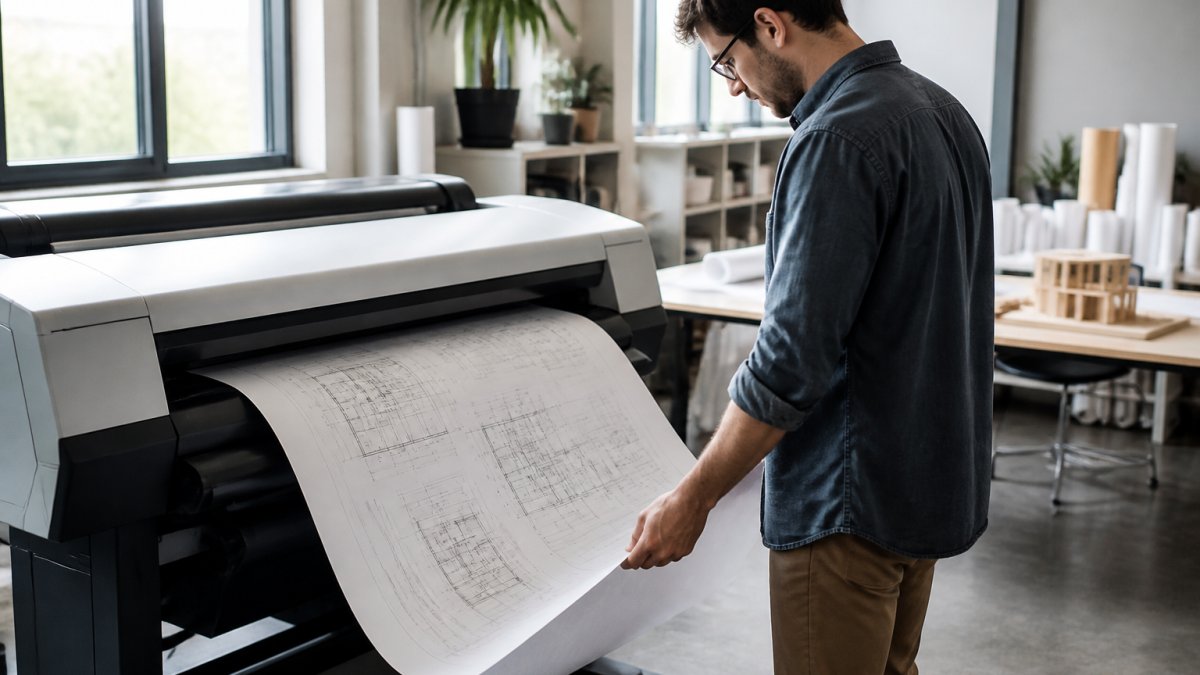
A large-format printer producing a rolled architectural drawing in a bright studio, with a designer reviewing the print and a desktop workstation visible in the background

Total Cost of Ownership Beats Sticker Price

Most firms compare equipment on purchase price alone. That is the wrong number. Total cost of ownership (TCO) for a piece of studio equipment is the sum of five buckets over its service life:

  • Acquisition, purchase price, delivery, and installation
  • Consumables, paper, toner or ink, print heads, and media for plotters and scanners
  • Service and maintenance, service contracts, on-site visits, and parts
  • Software and firmware, drivers, RIP software, and any per-seat licensing tied to the device
  • Training and downtime, hours lost while staff learn the tool or wait on a repair

A common pattern is that a lower-priced plotter with expensive consumables and a restrictive service contract costs more per printed sheet over three years than a higher-priced unit with a predictable service plan. Ask every vendor for a cost-per-sheet estimate at your typical monthly volume, not at peak volume.

Large-Format Printers, Scanners, and Multifunction Copiers

A wide format printer is the single most-used piece of equipment in most architecture offices. Choose based on monthly print volume and the largest sheet your projects require, not on the spec sheet’s maximum.

Multifunction copiers that combine printing, scanning, and copying reduce the number of separate devices competing for floor space and service contracts.

When comparing scanners, test them on your own worst-case document: a faded, folded, oversized drawing from a 1990s project.

Workstations, Displays, and Collaboration Hardware

Workstations should be specified around your heaviest BIM model, not your average one. A machine that opens a typical model quickly but stalls on a full coordination model will push your most experienced staff onto the slowest hardware.

Displays and interactive screens matter most in client-facing review rooms, where design iteration happens live. In practice, this means one strong review setup beats upgrading every desk.

Procurement and Upgrade Strategy

How you acquire equipment matters as much as what you acquire. The main options, and when each makes sense:

  • Buy outright, best for long-life assets you will keep past the depreciation window, such as workstations and large-format printers
  • Lease, spreads cost and keeps hardware current, useful if your project mix changes frequently
  • Subscription or managed print, bundles service and consumables into a predictable per-sheet or per-month figure, which simplifies budgeting
  • Refurbished, viable for scanners and secondary workstations, but verify service coverage before committing
  • Staged upgrades, replace the single worst-performing device each cycle rather than refreshing everything at once

BIM Workflow Optimization: Making the Software Stack Earn Its Keep

BIM workflow optimization means configuring your software so models, estimates, and fabrication files stay in sync without manual re-entry. The tools are only as good as the connections between them.

The University of the West of England identifies BIM, collaboration platforms, and virtual and augmented reality among the tools shaping architecture’s future, though the source gives no adoption rate. What it does confirm is direction: firms are moving toward connected workflows rather than isolated desktop software.

Interoperability Between Design, Estimating, and Fabrication Tools

Interoperability is where most software stacks quietly fail. A model that exports cleanly to your estimating tool but breaks in your fabrication software creates rework.

  • Confirm file format support before you buy, not after
  • Test a real project file through the full chain
  • Document which team owns each handoff
  • Check that cloud collaboration tools version files consistently
Watch Out
Buying software that doesn’t export to your existing fabrication tools creates a permanent manual step.

Architecture Document Management Systems: Taming Drawing Sets and RFIs

An architecture document management system is the controlled repository where drawing sets, revisions, and RFIs live, so the current version is always identifiable. Without one, firms rely on folder naming conventions.

Get In Touch →

A 2022 article by R. Cao in ScienceDirect notes that large firms incur substantial adjustment costs with cloud migration, which is why document management is the right place to start small.

Cybersecurity for Architecture Firms: Protecting Client Files and IP

Cybersecurity for architecture firms protects two assets that don’t appear on a balance sheet: client confidentiality and your own intellectual property. A single exposed drawing set can impact a client relationship.

Cloud computing is often described as flexible, scalable, and cost-effective, but the same flexibility that makes collaboration easy makes access control the hard part. Firms should treat client file permissions as a design problem, reviewed as carefully as a structural detail.

Pro Tip
Audit who can access your project folders quarterly. Former contractors and interns may retain access long after they’ve left.

Phased Implementation, Budget Planning, and Measuring ROI

A phased rollout is the only reliable way to adopt new equipment and software without stopping production. The firms that struggle are the ones that try to switch everything in a single quarter. The firms that succeed treat the rollout as a budget exercise with measurable checkpoints.

A Three-Phase Rollout That Limits Downtime

  1. Phase one (months 1-3): Replace the failing or end-of-life equipment first. This is your large-format printer, scanner, or workstation that already costs you time. Success here is measured in production stoppages avoided, not features gained.
  2. Phase two (months 4-8): Connect the software stack. Focus on interoperability between design, estimating, and document management. This is where most of the hidden labor savings live, because it removes manual re-entry.
  3. Phase three (months 9-12): Add collaboration and client-facing tools, such as interactive displays or virtual review setups. These are the hardest to justify on cost alone, so they belong last, once earlier phases have proven the process works.
Phase Focus Typical Duration Success Measure
One Critical hardware 1-3 months Fewer production stoppages
Two Software integration 4-8 months Less manual re-entry
Three Collaboration tools 9-12 months Faster client feedback loops

Allocating Budget Across Phases

A common pattern is to weight spending toward phase one and phase two, because those phases remove the bottlenecks that generate the savings used to fund phase three. If you front-load collaboration tools before fixing the production floor, you may spend the budget on the visible part of the problem and leave other areas untouched.

Set a contingency for training in every phase. Training is the line item most often cut and can be a reason a rollout stalls.

Measuring Return on Investment

Measuring return on investment requires a baseline captured before you buy anything. Track these numbers for at least one full quarter before the rollout begins:

  • Drafting hours per sheet, the core productivity measure
  • Reprint and rework volume, how often output has to be redone
  • Revision turnaround time, from client comment to issued revision
  • Software utilization, how many licensed seats are actually used weekly
  • Project margin by phase, whether savings show up in the business, not just the workflow

Compare those numbers quarterly. Payback period is a way to judge a purchase: divide the total cost of ownership by the monthly savings the tool produces.

Watch Out
A rollout without a baseline is a rollout that may be harder to defend at budget time. Capture the numbers before you buy.

Interoperability as a Budget Line

Hardware and software interoperability deserves its own budget line, not a footnote. Workstations, scanners, modeling tools, cloud storage, and project platforms all need to pass files cleanly to one another. A tool that works in isolation but breaks the chain creates a permanent manual step.

Test interoperability on a real project file before purchase. Document which team owns each handoff. That documentation is what keeps the phased plan from quietly unraveling six months in.

Common Mistakes Firms Make When Buying Equipment and Software

A common mistake is buying software before mapping the workflow it’s supposed to improve. Another is ignoring total cost of ownership, which includes service contracts, consumables, and staff training, not just the purchase price.

  • Choosing equipment by sticker price instead of cost per printed sheet
  • Skipping interoperability testing on real project files
  • Underestimating training time for new design tools
  • Treating cybersecurity as an IT problem rather than a client-trust issue
  • Buying for peak volume instead of typical monthly output
Best For
Firms under 50 people that need phased, budget-conscious adoption without a dedicated IT department.

Frequently Asked Questions

How can architecture firms choose cost-effective technology without sacrificing performance?

Start by mapping where hours actually disappear: redrawing scanned markups, chasing versions of drawing sets, and reprinting corrections. Equipment and software that shorten those tasks pay back fastest. Look at total cost of ownership over three to five years, including consumables, service contracts, and staff training, not just the purchase price. The 2024 study in Systems found that adopting digital technologies can improve operational efficiency, reduce costs, and enhance customer outcomes, which is the outcome to measure against your own baseline.

What equipment does a modern architecture firm need?

Most studios need a large-format printer for plan sets, a multifunction copier or scanner for submittals and markups, and workstations that can handle BIM models without lag. Collaboration displays, 3D printing, and laser cutting matter more for firms doing fabrication or physical models. The University of the West of England identifies BIM, collaboration platforms, and virtual and augmented reality among the tools shaping architecture’s future, so leave room in the budget for software that connects to the hardware you already own.

How can digital transformation improve an architecture firm’s workflow?

The biggest gains usually come from removing handoffs. When design models, document management, and print production share data, teams stop re-entering information and stop printing superseded sheets. Cloud computing adds flexibility and scalability to architecture workflows, according to IEREK, but it also introduces adjustment costs that large firms feel more acutely, per a 2022 ScienceDirect article. Plan the workflow change first, then buy the tools that support it.

How can small architecture firms protect project data on a limited budget?

Small firms can cover most of the risk with access controls, encrypted backups, and multi-factor authentication on every account that touches client files. Managed IT services are worth considering when no one on staff owns security full time. PwC’s 2026 Digital Trends in Operations Survey found 89% of respondents said their technology investments had not fully delivered expected results, a reminder to verify what a provider actually monitors before signing.

How can architecture firms reduce technology costs without losing capability?

Lease instead of buying outright when hardware refreshes every three to four years, consolidate overlapping software subscriptions, and negotiate service contracts that include response-time commitments. Phased rollouts spread spending across budget cycles and let you prove value on one team before expanding. Because large firms incur substantial adjustment costs with cloud migration, according to R. Cao’s 2022 research, moving in stages usually costs less than a single cutover.

Architecture firms face real pressure to modernize without disrupting billable work, and the wrong sequence of purchases makes that pressure worse. Accent Imaging helps firms get the order right, with AI-enhanced multifunction printing, Network on Command managed IT solutions, and document management systems backed by more than 40 years of experience. Get in touch with Accent Imaging to build a phased plan that fits your firm’s size and project mix.

AI Vectorization: Cut Drafting Time Up to 80%

AI Vectorization: Cut Drafting Time Up to 80%

Table of Contents

Last Updated: October 12, 2026

AI Vectorization and the Real Math Behind the 80% Drafting Time Claim

AI vectorization is the process of using machine learning to convert scanned raster drawings into editable vector CAD files automatically. According to HP’s AI vectorization overview, drafting time can drop by up to 80% when a raster drawing is converted rather than traced by hand.

That claim is real, but it’s narrower than it sounds. Below, we break down where the number comes from, what it excludes, and how responsive IT support determines whether your team actually captures those hours.

Where the 80% Figure Comes From

The 80% figure traces back to vendor testing on real drawing sets. During beta testing, TAVCO’s analysis of HP AI Vectorize reported the tool processed more than 5,000 drawings with a 5x speed increase and up to an 80% reduction in drafting time.

That’s a meaningful sample. It’s also a best-case scenario measured on drawings the tool handles well.

What the Number Does Not Include

The 80% applies to the conversion step, not the whole project. It excludes cleanup, layer mapping, dimension verification, and quality review. A common mistake is budgeting the savings before accounting for the human pass that follows every conversion.

CAD drafter comparing a scanned blueprint with its AI vectorization on dual monitors in an office

Treat 80% as a ceiling on one task, not a promise for your workflow.

AI Vectorization Software for Engineering Drawings: What It Does to a Raster File

AI vectorization software for engineering drawings reads a raster image, identifies lines, shapes, and text, and rebuilds them as vector geometry. The output is a file your CAD software can open and edit, not a picture you can only look at.

Line, Geometry, and Text Recognition

The AI engine separates three things: continuous lines, geometric primitives like arcs and circles, and text blocks. Machine learning models trained on real-world drawings improve at this over time, which is why newer tools handle messy scans better than older conversion utilities.

  • Line recognition: traces walls, pipes, and boundaries into editable polylines
  • Geometry recognition: snaps arcs, circles, and symbols to clean primitives
  • Text recognition: converts labels and callouts into editable text layers

How to Convert Scanned Drawings to Vector Files Without Losing Detail

Converting scanned drawings to vector files starts with scan quality, not software settings. A clean 400 DPI scan of a flat original will always outperform a phone photo of a curled page.

Pro TipScan at 400 DPI or higher in grayscale, not black and white. Thresholding to pure black and white before conversion destroys faint linework that the AI engine would otherwise recover.

Dealing With Aged, Faded, and Folded Originals

Aged and degraded drawings need image restoration before conversion. Faded ink, fold lines, and coffee stains all read as geometry to a naive converter, producing phantom lines you’ll delete by hand later.

For these jobs, run a despeckle and contrast pass first. It adds five minutes and saves an hour of manual cleanup.

AI Vectorization Accuracy and Limitations: What Still Needs a Human

AI vectorization accuracy is not a single number. It varies by drawing condition, element type, and how the output will be used. A tool that scores well on a clean 1990s mechanical print can fail badly on a hand-marked as-built, and the failure is rarely a wrong line, it is a missing line, which is worse because nothing flags it.

Where Errors Actually Come From

Most vectorization errors fall into four buckets, and each has a different cleanup cost:

Error Type

Typical Cause

Cleanup Effort

Broken or gapped lines

Faint ink, fold creases, low scan contrast

Low, snap and join tools handle most cases

Phantom geometry

Speckle, stains, bleed-through from the reverse side

Low to moderate, delete by hand

Merged or dropped text

Overlapping callouts, small fonts, italic or condensed type

High, retype against the raster original

Misread symbols

Non-standard or project-specific symbol libraries

High, rebuild from the legend

A common pattern practitioners report: cleanup time scales with annotation density, not sheet size. A dense electrical schematic with hundreds of callouts takes far longer to verify than a large but sparsely annotated site plan, even though the site plan is the bigger file.

Why ‘High Accuracy’ Still Means Review

The output is geometry, not verified geometry. A vectorized wall line can be perfectly clean and still be in the wrong place by a few pixels, which matters at scale. Dimension text can be recognized correctly but attached to the wrong extension line. Neither error is visible without comparing the vector file against the raster source.

That is why the review pass is not optional. Plan for it as a line item, not a contingency:

  • Spot check clean linework against the raster at 100% zoom
  • Verify every dimension value against the original, do not trust OCR on numbers
  • Redraw handwritten markups rather than attempting to convert them
  • Rebuild non-standard symbols from the project legend

The Benchmark Competitors Skip

Most vendor material reports a single speed figure and stops.

Run that test on your worst drawings, not your best ones.

Get In Touch →

Watch OutA vectorized file that looks correct at fit-to-screen zoom can hide dropped lines, merged text, and misplaced geometry. Always review at 100% zoom against the raster original before releasing a drawing.

Why Responsive IT Support Decides Whether Vectorization Actually Saves Time

Responsive IT support determines whether vectorization saves time or creates a new bottleneck. A conversion job that stalls on a crashed workstation or a locked file share costs more than the drafting hours it was meant to save.

Watch OutCloud-based processing means your drawings leave your network. If your IT provider hasn’t mapped where those files travel and who can access them, you’ve created a data exposure you can’t audit.

Engineering Document Management Software: Where Vectorized Files Live After Conversion

Engineering document management software is where converted files should land, not a shared drive. Without version control, a vectorized drawing and its raster original drift apart within weeks, and nobody knows which is current.

A document management system like our recommended HP Build Workspace solution gives you:

  • Version history tied to each drawing revision
  • Access controls by project and role
  • Search across both raster and vector assets
  • Retention rules that match your contract requirements

This is the layer most teams skip, and it’s the one that decides whether the time savings hold.

Security, Ownership, and Cost: Questions to Settle Before You Buy

Security and ownership terms matter more than the conversion speed on the demo. This is the section most buyers skim and most vendors would prefer you skim, because the answers shape your total cost of ownership far more than the per-drawing conversion rate does.

Security and Data Handling

Cloud-based vectorization means drawings leave your network. Before you upload anything, get written answers to these:

  • Where are files stored and processed? Region matters if your contracts or client agreements restrict data location.
  • How long are they retained? Look for a defined deletion window, not ‘as long as needed.’
  • Are they used to train models? Opt-out should be explicit and default, not buried in a settings menu.
  • Who can access them? Ask for the access-control model and whether vendor staff can view customer files.
  • What happens on termination? Confirm export and deletion terms in writing.

If a vendor cannot answer these in a document you can attach to a contract, treat that as the answer.

Ownership

Ownership of the output is usually clear, you own the vector file. Ownership of the input and any derived training data is where terms diverge. Read the license agreement for language about derivative works and model improvement, and have counsel review anything that grants the vendor rights beyond processing your file to return your result.

Total Cost of Ownership

Subscription or usage fees are the visible cost. The real cost includes:

  • Conversion fees or seat licenses, per-drawing, per-seat, or tiered by volume
  • Cleanup labor, the largest and most underestimated line item
  • Review labor, verification against the raster original
  • Storage and document management, versioned storage for both raster and vector assets
  • IT support, the responsiveness layer that keeps the pipeline running
  • Rework, drawings that fail review and need re-conversion or manual tracing

A useful exercise: take one representative drawing set and estimate hours for each line above, then compare that total against the hours your team currently spends tracing the same set by hand. The gap is your actual savings, and it is almost never 80%.

Alternatives and When to Choose Them

AI vectorization is one option among four, and the right choice depends on drawing type and volume:

Approach

Best For

Watch Out For

AI vectorization

Clean to moderately degraded linework, high volume

Cleanup and review labor on dense annotation

Manual tracing

Small sets, complex or non-standard drawings

Slow, expensive, hard to scale

Conventional raster-to-vector software

Simple geometry, budget constraints

Requires skilled operators, limited on messy scans

Outsourcing

Overflow capacity, one-time backlog projects

Turnaround time, data handling, quality consistency

Most teams end up with a hybrid: AI conversion for the bulk of the backlog, manual tracing for the drawings the tool handles poorly, and outsourcing for surge capacity. The decision criteria are drawing condition, annotation density, and how much review your team can absorb.

Key TakeawayThe 80% drafting time reduction is achievable, but only when conversion speed, IT responsiveness, and document management work together. Fix one and the other two will cap your gains.

Conclusion

The hard part isn’t the conversion, it’s holding onto the hours it frees up. Accent Imaging has spent over 40 years helping AEC firms connect document technology to real workflow gains, from AI-enhanced multifunction printing to Network on Command managed IT support and document management systems. If your drafting team is ready to stop tracing and start editing, get in touch with Accent Imaging and let’s map the workflow end to end.

Contact Us Today →

Frequently Asked Questions

Can AI vectorization reduce drafting time by up to 80%?

The 80% figure comes from vendor claims about AI vectorization tools, and beta testing reported on more than 5,000 drawings showed a 5x speed increase alongside that reduction. Treat it as a best case, not a baseline. The savings shrink when drawings are faded, hand-annotated, or drawn to inconsistent scales, because cleanup and human review add hours back. Measure your own results on a sample of 20 to 30 representative sheets before you commit to a firm-wide rollout.

How accurate are AI-vectorized technical drawings?

Accuracy varies by source quality. Clean, high-resolution scans convert with minimal cleanup, while aged or degraded originals often produce broken lines, merged layers, and misread text. AI vectorization accuracy and limitations both come down to the training data behind the engine and the condition of your drawings. Plan for a human review pass on every file, and budget cleanup time for older plan sets. Independent error analysis on your own drawing samples is the only reliable benchmark.

Can AI vectorization convert scanned drawings into editable CAD files?

Yes. Raster-to-vector conversion turns scanned drawings into vector graphics that open in standard CAD software, where lines, arcs, and text become editable objects rather than pixels. Results depend on file compatibility and the tool’s line and geometry recognition. Expect to check layer structure, line weights, and text placement after conversion. Batch processing helps on large plan sets, but review a few sheets first to confirm the output meets your drafting standards.

What should engineering teams check before adopting an AI vectorization tool?

Run a pilot on real drawings from your own archive, not vendor samples. Check drawing accuracy, cleanup effort per sheet, supported file types, and CAD compatibility. Confirm who owns uploaded drawings and where they are stored, since security and privacy terms vary. Then look at the IT side: a drafting workflow stalls if the connection drops or support is slow. Ask about response times, migration downtime, and training hours before you sign.

What makes a partnership with Accent Imaging superior as your local dealer vs. the national companies?

What makes a partnership with Accent Imaging superior as your local dealer vs. the national companies?

In today’s fast-paced business environment, personalized service and quick response times can make all the difference. If you feel like just another number to your current dealer, it’s time to discover the benefits of working with Accent Imaging. We combine the strength of a national reach with the attentive, superior service of a local provider. Here’s why businesses trust us for their imaging and printing needs:

Personalized Service

At Accent Imaging, we believe in building relationships, not just transactions. Our team takes the time to understand your unique needs, providing tailored support and solutions. We even offer loaner equipment to minimize downtime, ensuring that your business continues to operate smoothly.

Faster Delivery Times

Unlike venture capitalist dealerships that rely on slow-moving supply chains, Accent Imaging keeps inventory on hand. This allows us to offer quicker delivery times, ensuring that you get the equipment you need without unnecessary delays.

Quick Response Time

Equipment issues can disrupt your business, but with Accent Imaging, you won’t have to wait long for solutions. Our rapid response times mean that a skilled technician is dispatched promptly to diagnose and resolve any issues, minimizing disruptions and keeping your operations running efficiently.

Customized Solutions

We take the time to understand your business and workflow, recommending the right equipment and software solutions to improve efficiency and productivity. No one-size-fits-all approach—just tailored solutions designed to meet your specific needs.

Local Market Expertise

Being deeply rooted in the local market gives us a better understanding of the unique challenges and needs of businesses in our community. We use this knowledge to provide relevant, practical solutions that help your business thrive.

Cost-Effective Warranty and Repair Services

Dealing with national service centers can be time-consuming and costly. At Accent Imaging, we offer more convenient and cost-effective service plans that keep your equipment running smoothly without the hassle of working with impersonal, remote service providers.

Stronger Business Relationships

We don’t just sell products—we build long-term partnerships. Our personal and collaborative approach means we grow alongside your business, providing ongoing support and ensuring you always have the right tools to succeed.

Onsite Support and Training

Technology is only as good as your ability to use it effectively. That’s why we offer onsite support and training for your staff. Whether it’s installation, setup, or troubleshooting, our hands-on assistance ensures that you get the most out of your equipment.

Experience the Accent Imaging Difference

When you choose Accent Imaging, you’re not just getting a service provider—you’re gaining a partner who is committed to your success. Don’t settle for being just another customer number. Experience the benefits of localized, superior service with the national reach of Accent Imaging.

Contact us today to learn more about how we can support your business.

Get In Touch →

Change is coming to the mailing Industry. We’re Ready, Are You? 

Change is coming to the mailing Industry. We’re Ready, Are You? 

New USPS requirements for Postage Meters begin December 31st 2024. You’ve trusted us with your office equipment, did you know that your mailing postage meter equipment will expire soon?

By December 31, 2024, all postage meters must be upgraded to the new USPS® Intelligent Mail Indicia (IMI) security and connectivity requirements. Together with FP Mailing Solutions, we are prepared with a fully IMI-compliant postage meter line for every need and budget.

The USPS® released new Intelligent Mail Indicia (IMI) technology that improves security, provides constant connection, and helps eliminate inaccurate postage issues. All postage meters must be upgraded to this new IMI technology by December 31, 2024. We have you covered! We offer a complete line of fully IMI-compliant postage meters with options to fit your business needs.

Our postage meters offer:

  • Access to USPS® postal discounts
  • Online management via MyFP Customer Portal
  • USPS® IMI-Compliant technology
  • and more!

Don’t wait! Contact us today to discuss your postage meter options.